MidJourney Prompt Helper
Discover an array of captivating and intricate creative prompts and explore a wide range of styles through visually stimulating content.
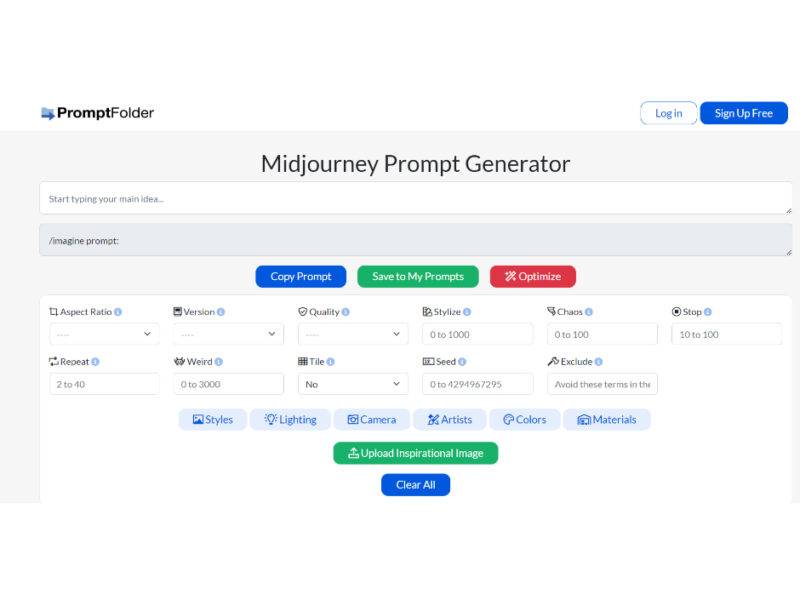
About MidJourney Prompt Helper
Use Cases
Use Case 1: Rapid Branding and Social Media Content Creation
Problem: Marketing teams often need a high volume of consistent, high-quality visual content for social media, but they may lack the technical knowledge to write complex Midjourney code for specific aspect ratios or professional lighting.
Solution: This tool allows marketers to bypass the "blank page" problem. By using the Aspect Ratio presets (like 9:16 for Reels/Stories or 1:1 for Instagram) and Lighting presets (like "Natural Lighting" or "Softbox"), they can ensure all generated images fit the platform requirements and brand aesthetic without memorizing syntax.
Example: A social media manager wants a summer-themed background for a product post. They select the "9:16" aspect ratio, choose "V6," select "Pastel" from colors, and "Natural Lighting." They type "Modern skincare bottle on a beach" and copy the perfectly formatted prompt into Midjourney.
Use Case 2: Asset Prototyping for Indie Game Developers
Problem: Developers frequently need concept art or textures (like pixel art, 16-bit styles, or seamless tiles) but struggle to get Midjourney to produce technically correct assets for game engines.
Solution: The tool features specific categories for Materials, Styles (like "8-bit," "16-bit," or "Isometric"), and the Tile parameter. This helps developers generate assets that are ready for prototyping, such as environment textures or character sprites, by simply toggling the correct technical flags.
Example: A developer needs a dungeon floor texture. They type "Stone cobblestones with moss," select the Tile toggle to ensure the image repeats seamlessly, and choose "Dungeon" or "Dark" styles to get a consistent look across all game levels.
Use Case 3: High-Fidelity Product Mockups for E-commerce
Problem: Small business owners want professional "studio-quality" product shots but cannot afford expensive photography gear or studio time. Using AI can result in "flat" images if the user doesn't know how to prompt for camera lenses.
Solution: The tool provides a Camera and Lighting menu that includes professional terminology like "DSLR," "Macro Lens," "Depth of Field," and "Concert Lighting." This allows users to simulate high-end photography by selecting the specific lens type and lighting setup they want for their virtual product shoot.
Example: A jewelry maker wants a close-up of a ring. They select "Macro Lens" for a blurred background effect, "Gold" from Materials, and "Edison Bulb" for warm lighting. The tool generates the prompt suffix (e.g., --ar 3:2 --v 6 --stylize 250) automatically.
Use Case 4: Architectural and Interior Design Mood Boarding
Problem: Interior designers and architects need to present visual "vibes" to clients. Manually searching for stock photos is time-consuming, and raw AI prompts often miss the specific "materiality" or "artistic influence" required for a professional presentation.
Solution: By using the Materials (Marble, Wood, Glass) and Artists/Styles (Renaissance, Ultra Modern, Da Vinci) sections, designers can build nuanced prompts that reflect specific architectural movements. The AI Optimize button can then take a basic idea and turn it into a descriptive, professional-grade prompt.
Example: A designer creating a "Modern Industrial" kitchen concept selects "Concrete" and "Steel" from materials, sets the Chaos parameter to 30 to get several creative layout variations, and uses the "Ultra Wide Angle Lens" preset to capture the full room.
Use Case 5: Technical Illustration and Blueprint Generation
Problem: Technical writers or engineers may need "blueprint style" or "anatomical" drawings for documentation but don't have the sketching skills to produce them manually.
Solution: The tool includes specific presets like "Blueprint Drawing," "Anatomical Drawing," and "Technical" under the Styles category. By combining these with the No (exclude) parameter, users can remove unwanted artistic flourishes or colors to keep the image clean and professional.
Example: A developer needs a "tech-heavy" icon for a dashboard. They select "Blueprint Drawing," type "Engine internal components," and use the Exclude box to type "color, shadows, 3d" to ensure the result is a flat, clean 2D technical sketch.
Key Features
- AI-powered prompt optimization
- Configurable Midjourney technical parameters
- Extensive style and artist presets
- Customizable prompt element weighting
- Inspirational image reference support
- Integrated prompt folder management
- Specialized lighting and camera presets
Similar Tools You Might Like
Discover more tools in the same category

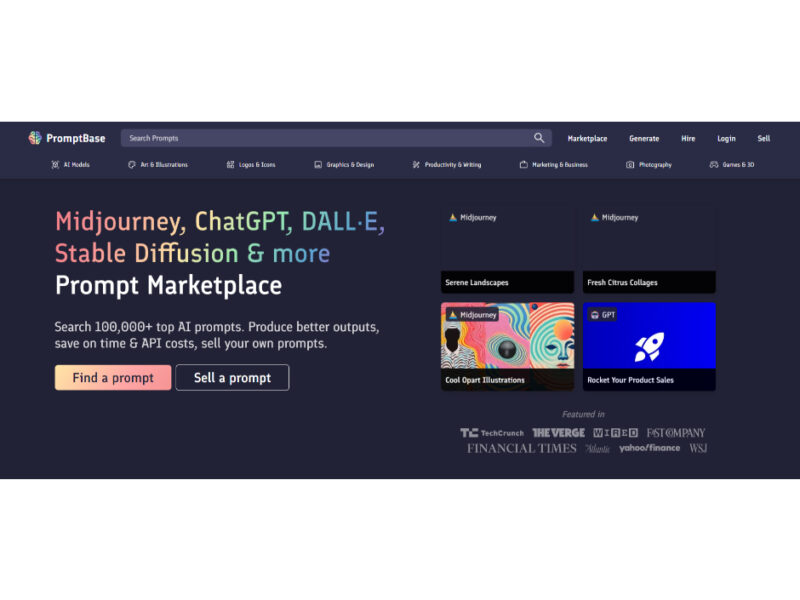
PromptBase
Get the best prompts and save money on API expenses. Discover exciting and enticing options …
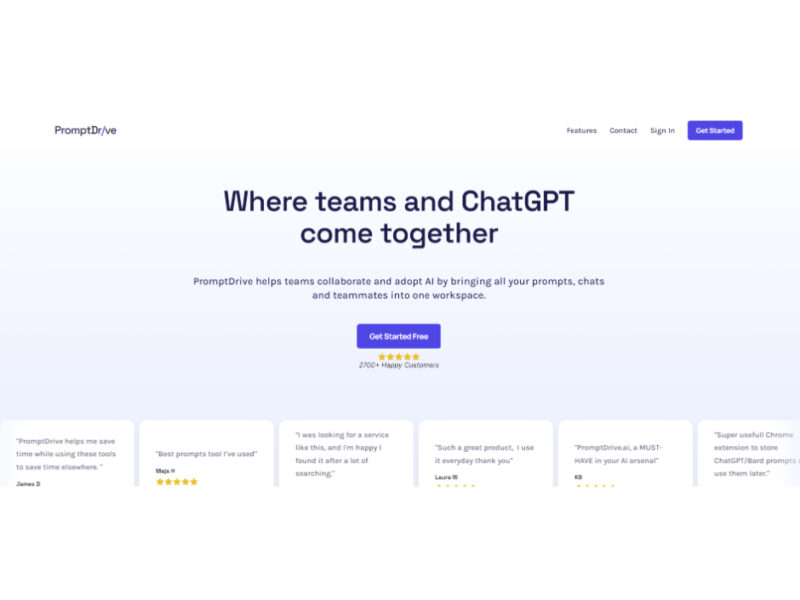
PromptDrive.ai
PromptDrive.ai is an innovative web application that simplifies the process of creating and managing prompts. …
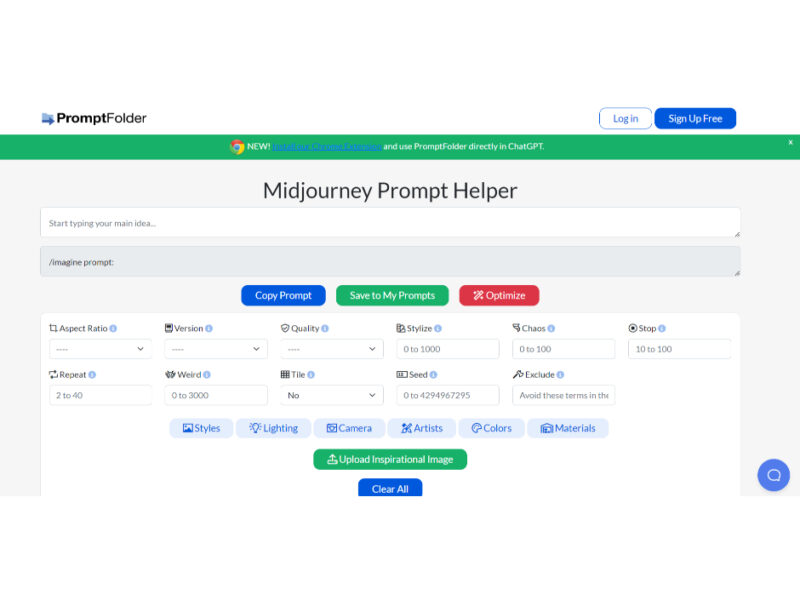
PromptFolder
PromptFolder is a specialized tool designed to maximize the potential of ChatGPT, the advanced AI …
Trickle AI: Prompts Warehouse
Trickle Prompts Warehouse is a comprehensive prompt collection tool integrated with GPT-powered AI, designed to …
Ordinary People Prompts
Join our AI prompt community to create, vote, and comment on your favorite artificial intelligence …
Explore Related Categories
Live Preview:
Updates automatically with live stats
Copied to clipboard!